Self-host Keycloak
Single sign-on for your apps, with the admin console kept private.
Shelley handles the setup. About 20 minutes.
Prefer a terminal?
curl -fsSL https://exe-staging.dev/deploy/keycloak/prompt.txt | ssh exe.dev new --prompt=/dev/stdinKeycloak is the open-source identity provider behind a great many "Sign in with..." buttons. You keep users, passwords, two-factor and roles in one place, and your apps hand sign-in to it over OpenID Connect or SAML: one account for Grafana, your wiki, your internal tools and your own APIs, and one place to turn someone off.
This recipe runs Keycloak in production mode with PostgreSQL on an exe.dev VM. exe.dev supplies the HTTPS and the stable address that every token's issuer depends on, and its login lets you split Keycloak in two: the login pages face the internet, while the admin console stays on a private port behind your exe.dev account. Then you connect Grafana on another VM as a worked example.
What you get#
- Keycloak in production mode on PostgreSQL, with its URLs set for exe.dev's HTTPS proxy.
- A permanent admin account in place of the temporary one, with its password in a file only you can read.
- An apps realm for your users, with brute-force protection on.
- A public port that serves only realm logins, and refuses the admin console and master realm.
- Nightly database backups, with one restored into a scratch database to check it.
- Everything starts again after a reboot.
What's running, and where
https://my-keycloak.exe.xyz/
Login pages, the account page and the OIDC and SAML endpoints of your realms, once you open it
https://my-keycloak.exe.xyz:8080/
The admin console, the admin API and the master realm, behind exe.dev login
Deploy with Shelley#
Click Deploy and Shelley will set up Keycloak on a new VM, then check that it works. No config-file wrangling required.
Prefer a terminal?
curl -fsSL \
  https://exe-staging.dev/deploy/keycloak/prompt.txt \
  | ssh exe.dev new --prompt=/dev/stdin
What Shelley is told
Set up Keycloak on this VM by following the exe.dev recipe at https://exe-staging.dev/deploy/keycloak.md?via=deploy from top to bottom.

The recipe's example VM name is my-keycloak. This VM's name is the output of `hostname`: use it wherever the recipe writes my-keycloak. Skip the step that creates the VM; you are on it.

You are done when all of these are true. Check each one yourself:
- Keycloak in production mode on PostgreSQL, with its URLs set for exe.dev's HTTPS proxy.
- A permanent admin account in place of the temporary one, with its password in a file only you can read.
- An apps realm for your users, with brute-force protection on.
- A public port that serves only realm logins, and refuses the admin console and master realm.
- Nightly database backups, with one restored into a scratch database to check it.
- Everything starts again after a reboot.

Read the whole recipe, including the closed details. For initial setup,
follow "Install by hand" first, skipping VM creation and SSH: Docker,
the settings, starting Keycloak, replacing the temporary admin, the apps
realm, nginx, the backup timer, and the backup test. The walkthrough at
the top is for the owner afterwards.
Work as exedev in ~/keycloak. Never overwrite an existing .env. Don't
create users or clients, set up SMTP or connect apps unless the owner
asks. Don't run Restore or Update. You can't make the VM public from
the VM; leave that to the owner, and don't ask them to until you're done.
Verify docker.service and nginx are enabled, both containers use
unless-stopped and are healthy, the apps realm's discovery document on
localhost:8000 names https://<vm>.exe.xyz/realms/apps as its issuer,
/admin/ and /realms/master/ return 404 on localhost:8000, the console
returns 200 on localhost:8080, temp-admin is gone, the backup timer is
enabled and the backup test passes. Do not reboot.
Never paste a password into the chat; say the admin password is
ADMIN_PASSWORD in ~/keycloak/.env. Finish by pointing the owner to
"Open the admin console" and "Open the login pages".

Finish with the URLs I should open.
Also at /deploy/keycloak/prompt.txt. The recipe it follows is /deploy/keycloak.md.
Do you need Keycloak?#
Maybe not. Every exe.dev VM already has a login in front of it. A
private VM lets in only you and the people you
share it with, by email or team, and your app can read
who they are from the X-ExeDev-Email header
(Login with exe). That's single sign-on across all
your VMs, with nothing to run. If everyone who uses your apps can have an
exe.dev account, start there.
Run Keycloak when:
- Your users aren't on exe.dev: customers, contractors, a club or a school, who should sign in with a username and password you manage, or with Google or GitHub.
- The app only speaks OIDC or SAML. Many apps have a "generic OAuth" or SAML setting and nothing else. Keycloak gives them a standard identity provider.
- You want roles and groups in one place, sent to every app in the token, so making someone an admin in Grafana is a Keycloak setting.
- Your APIs need tokens. Services and scripts get short-lived tokens with the client-credentials grant, and your API checks them against Keycloak's public keys.
- You need policy: required two-factor, password rules, session lengths, sign-in from LDAP or Active Directory.
How it's laid out#
Keycloak answers on two ports, through nginx on the VM:
| Address | Who | What it serves |
|---|---|---|
https://my-keycloak.exe.xyz/ |
Anyone, once you open it | /realms/apps/...: login pages, the account page, OIDC and SAML endpoints |
https://my-keycloak.exe.xyz:8080/ |
You, after exe.dev login | The admin console, admin API, master realm |
Keycloak keeps its own administrators in the master realm and your
users in a separate realm, here called apps. The public port refuses
/admin/ and /realms/master/, as Keycloak's
reverse proxy guide
recommends, so nobody on the internet can try an admin password.
Open the admin console#
Open https://my-keycloak.exe.xyz:8080/ and sign in to exe.dev if asked.
Then sign in to Keycloak as admin. The password is ADMIN_PASSWORD in
~/keycloak/.env on the VM. On your computer:
ssh my-keycloak.exe.xyz grep ADMIN_PASSWORD keycloak/.env
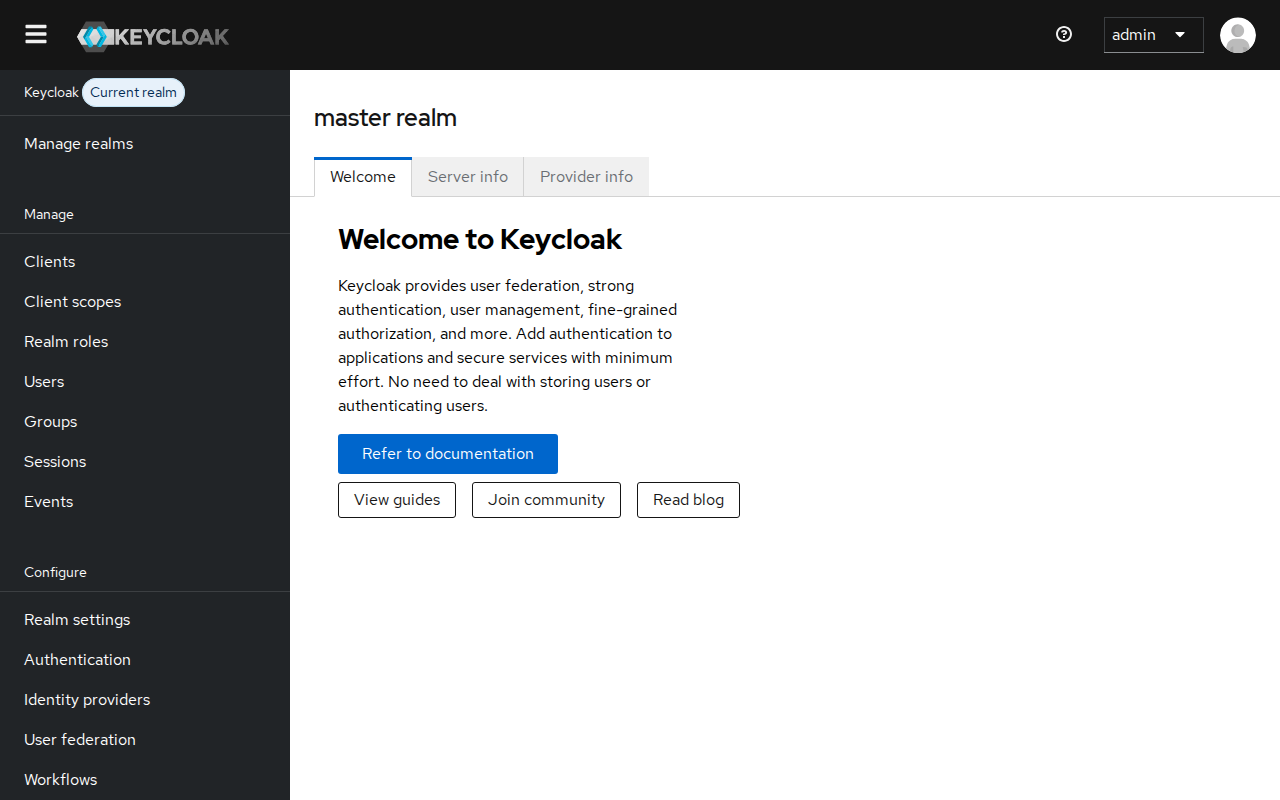
Pick apps in the realm menu (top left) for everything that follows. Master is only for Keycloak's own administrators.
If you change the admin password in the console, change ADMIN_PASSWORD
in ~/keycloak/.env too: the ~/keycloak/kcadm helper, which runs
Keycloak's admin CLI, signs in with it. Turn on two-factor for the admin
under Authentication in the master realm if you like; exe.dev login
already stands in front of it.
Open the login pages#
Your users need to reach the login pages without an exe.dev account, so make port 8000 public. On your computer:
ssh exe.dev share set-public my-keycloak
Port 8080 stays private: exe.dev serves ports other than 8000 only to signed-in users with access. Check both from your computer:
curl -s https://my-keycloak.exe.xyz/realms/apps/.well-known/openid-configuration | jq -r .issuer
curl -s -o /dev/null -w '%{http_code}\n' https://my-keycloak.exe.xyz/admin/master/console/
curl -s -o /dev/null -w '%{http_code}\n' https://my-keycloak.exe.xyz:8080/
The first prints https://my-keycloak.exe.xyz/realms/apps; the second
404, refused by nginx; the third 401, refused by exe.dev.
Add people#
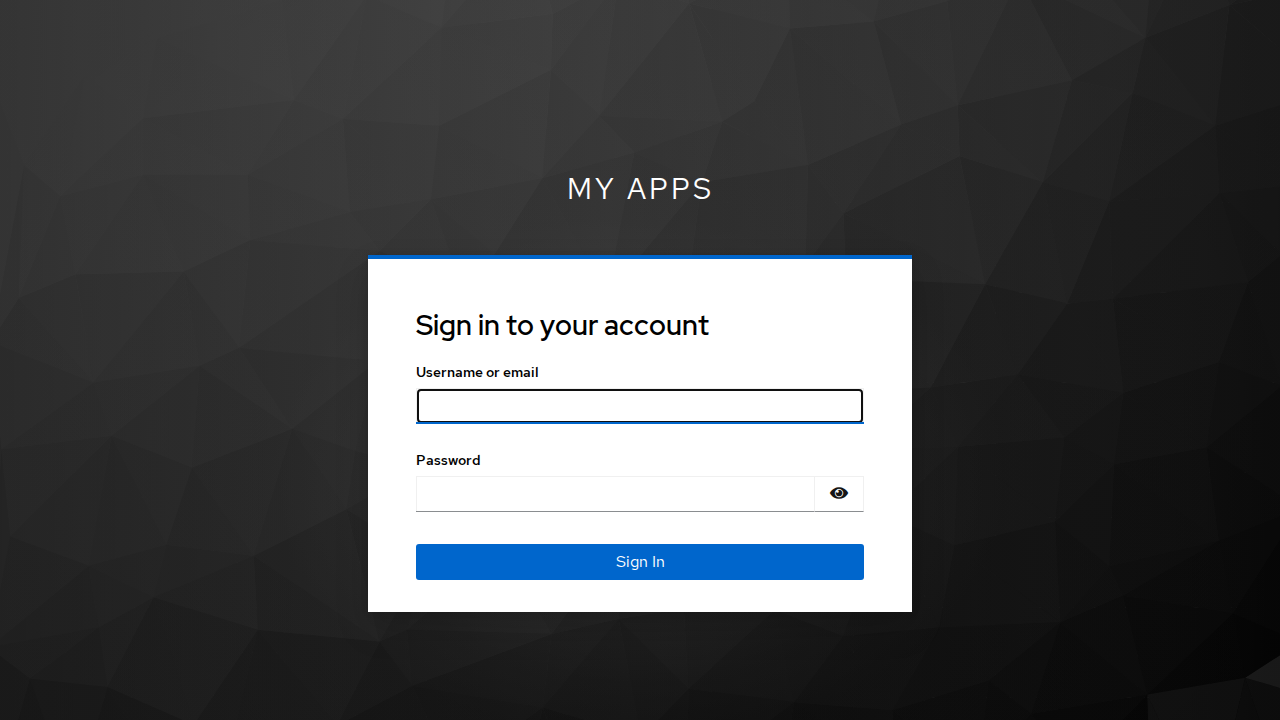
In the console, with the apps realm picked: Users → Add user. Give a username, email, first and last name, and tick Email verified. Then on the Credentials tab, Set password with Temporary on. They'll choose their own at first login.
Or ask Shelley, or run it on the VM:
cd ~/keycloak
./kcadm create users -r apps -s username=alice -s email=alice@example.com \
  -s firstName=Alice -s lastName=Example -s enabled=true -s emailVerified=true
pw=$(openssl rand -base64 12); echo "Alice's first password: $pw"
./kcadm set-password -r apps --username alice --new-password "$pw" --temporary
Send the password to them yourself. Keycloak can't email anyone until
you give it SMTP. Each person can change their password, set
up two-factor and sign out of sessions at https://my-keycloak.exe.xyz/,
which opens their account page.
Connect Grafana#
Here's a whole OIDC connection, end to end: a Grafana on its own VM, with no login of its own, where Keycloak decides who gets in and who is an admin. The same three steps fit most apps: register a client in Keycloak, give the app its ID and secret, and point the app at the realm.
Note
The Grafana recipe signs people in with their exe.dev login instead, which is simpler if they all have one. This example is a fresh Grafana VM for people who don't.
1. Register Grafana in Keycloak. On the Keycloak VM, this makes a
confidential client called grafana, two client roles (admin and
editor), and a mapper that puts the user's roles into a roles claim:
cd ~/keycloak
app=https://my-grafana.exe.xyz
id=$(./kcadm create clients -r apps -i -s clientId=grafana -s name=Grafana \
  -s "rootUrl=$app" -s "redirectUris=[\"$app/login/generic_oauth\"]" \
  -s "webOrigins=[\"$app\"]" -s "attributes.\"post.logout.redirect.uris\"=$app/login" \
  -s publicClient=false -s standardFlowEnabled=true \
  -s directAccessGrantsEnabled=false -s fullScopeAllowed=false)
./kcadm create clients/$id/roles -r apps -s name=admin
./kcadm create clients/$id/roles -r apps -s name=editor
./kcadm create clients/$id/protocol-mappers/models -r apps \
  -s name=roles -s protocol=openid-connect \
  -s protocolMapper=oidc-usermodel-client-role-mapper \
  -s 'config."usermodel.clientRoleMapping.clientId"=grafana' \
  -s 'config."claim.name"=roles' -s 'config.multivalued=true' \
  -s 'config."jsonType.label"=String' -s 'config."id.token.claim"=true' \
  -s 'config."access.token.claim"=true' -s 'config."userinfo.token.claim"=true'
mkdir -p clients && (umask 077 &&
  ./kcadm get clients/$id/client-secret -r apps --fields value --format csv --noquotes > clients/grafana.secret)
./kcadm add-roles -r apps --uusername alice --cclientid grafana --rolename admin
The last line makes Alice a Grafana admin. In the console, that's Users → alice → Role mapping → Assign role, filtered by client.
2. Make the Grafana VM and give it the secret. On your computer:
ssh exe.dev new --name=my-grafana
ssh my-keycloak.exe.xyz cat keycloak/clients/grafana.secret |
  ssh my-grafana.exe.xyz 'mkdir -p grafana && umask 077 && cat > grafana/client-secret'
ssh my-grafana.exe.xyz
3. Start Grafana, pointed at the realm. On the Grafana VM:
sudo systemctl enable --now docker.service
cd ~/grafana && mkdir -p data
kc=https://my-keycloak.exe.xyz/realms/apps
me=https://$(hostname).exe.xyz
test -e grafana.env || (umask 077; cat > grafana.env <<EOF
GF_SECURITY_ADMIN_PASSWORD=$(openssl rand -hex 24)
GF_AUTH_GENERIC_OAUTH_CLIENT_SECRET=$(cat client-secret)
EOF
)
cat > compose.yaml <<EOF
services:
  grafana:
    image: grafana/grafana:13.3.1
    restart: unless-stopped
    user: "1000:1000"
    ports:
      - 8000:3000
    env_file: grafana.env
    environment:
      GF_SERVER_ROOT_URL: $me/
      GF_AUTH_GENERIC_OAUTH_ENABLED: "true"
      GF_AUTH_GENERIC_OAUTH_NAME: Keycloak
      GF_AUTH_GENERIC_OAUTH_CLIENT_ID: grafana
      GF_AUTH_GENERIC_OAUTH_SCOPES: openid email profile
      GF_AUTH_GENERIC_OAUTH_AUTH_URL: $kc/protocol/openid-connect/auth
      GF_AUTH_GENERIC_OAUTH_TOKEN_URL: $kc/protocol/openid-connect/token
      GF_AUTH_GENERIC_OAUTH_API_URL: $kc/protocol/openid-connect/userinfo
      GF_AUTH_GENERIC_OAUTH_USE_PKCE: "true"
      GF_AUTH_GENERIC_OAUTH_ALLOW_SIGN_UP: "true"
      GF_AUTH_GENERIC_OAUTH_LOGIN_ATTRIBUTE_PATH: preferred_username
      GF_AUTH_GENERIC_OAUTH_EMAIL_ATTRIBUTE_PATH: email
      GF_AUTH_GENERIC_OAUTH_NAME_ATTRIBUTE_PATH: name
      GF_AUTH_GENERIC_OAUTH_ROLE_ATTRIBUTE_PATH: "contains(roles[*], 'admin') && 'Admin' || contains(roles[*], 'editor') && 'Editor' || 'Viewer'"
      GF_AUTH_SIGNOUT_REDIRECT_URL: $kc/protocol/openid-connect/logout?client_id=grafana&post_logout_redirect_uri=https%3A%2F%2F$(hostname).exe.xyz%2Flogin
      GF_AUTH_DISABLE_LOGIN_FORM: "true"
    volumes:
      - ./data:/var/lib/grafana
EOF
docker compose up -d
Then open it to the world, on your computer:
ssh exe.dev share set-public my-grafana
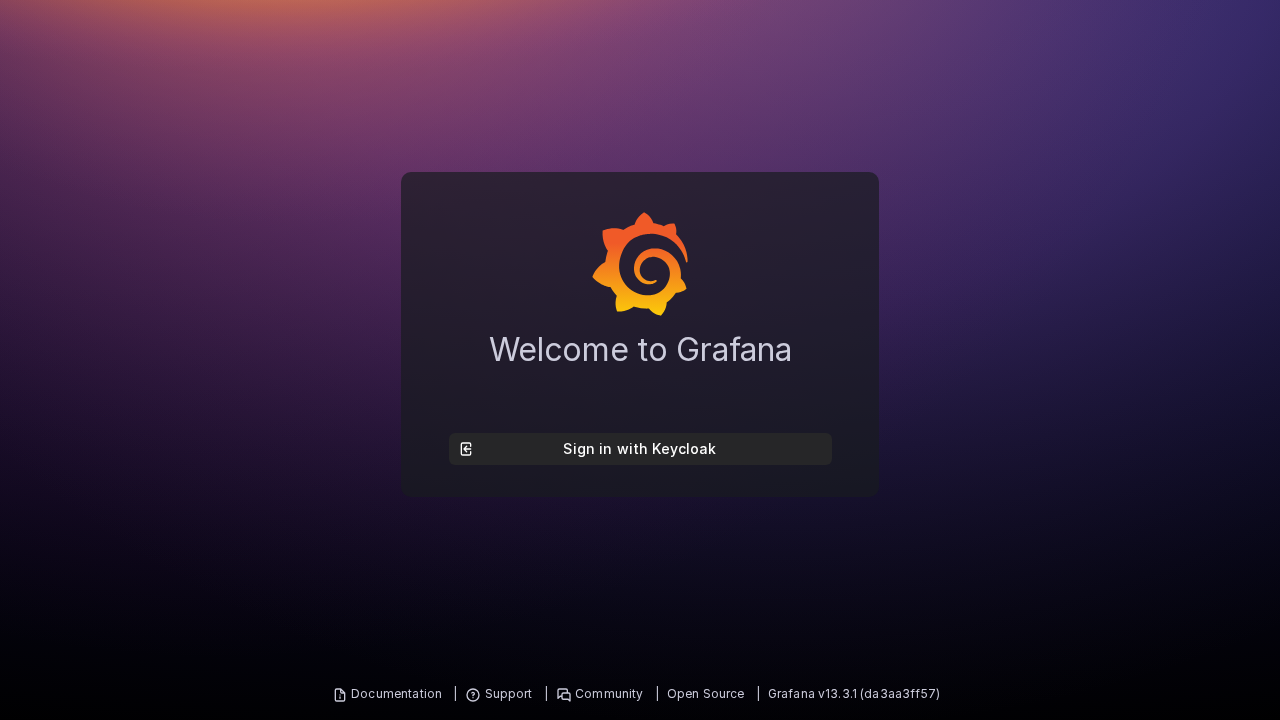
Open https://my-grafana.exe.xyz/ and click Sign in with Keycloak.
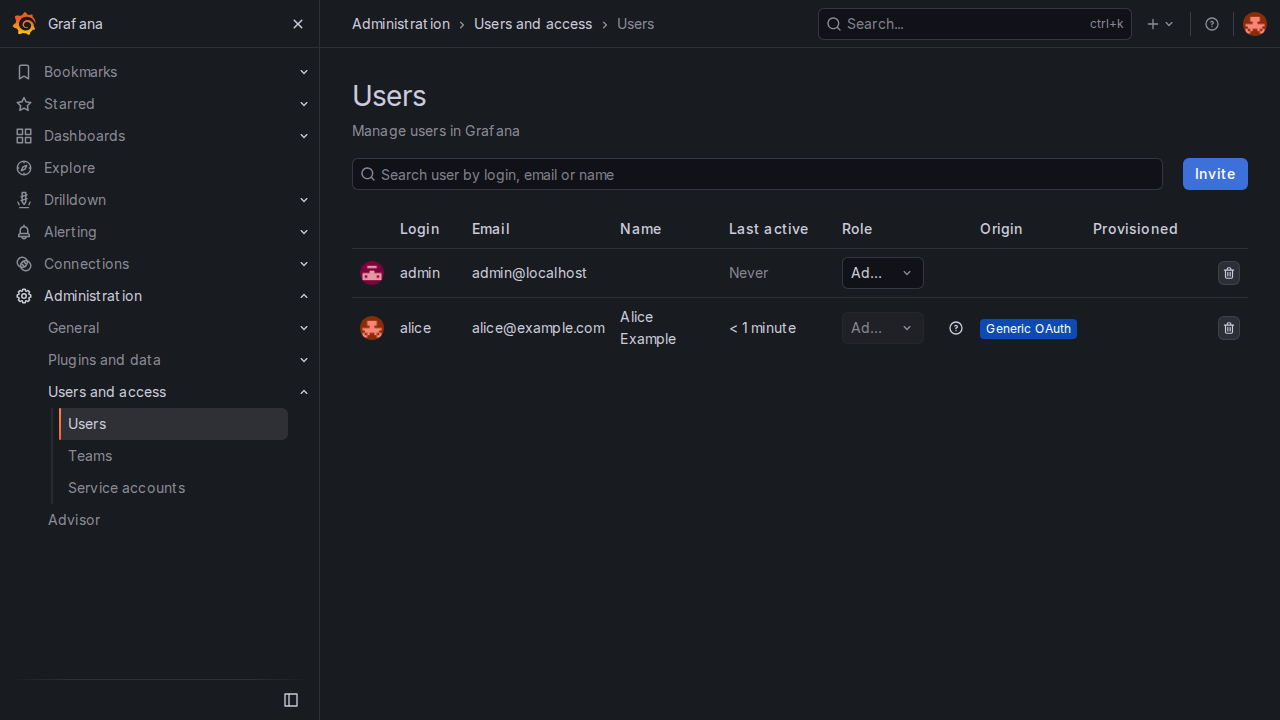
Alice signs in on Keycloak's page, picks a new password, and lands in
Grafana as an Admin. Someone with no Grafana role gets Viewer. Sign
out in Grafana signs her out of Keycloak as well.
The Grafana VM fetches tokens from Keycloak's public address, so the two
VMs need nothing special between them. Grafana's built-in admin can't
sign in, because the login form is off; its password is in
~/grafana/grafana.env in case you turn the form back on.
Connect other apps#
Most apps want the same few values. Make a client for each, as above or with Clients → Create client in the console, and give the app:
| Setting | Value |
|---|---|
| Issuer | https://my-keycloak.exe.xyz/realms/apps |
| Discovery URL | https://my-keycloak.exe.xyz/realms/apps/.well-known/openid-configuration |
| Client ID and secret | From the client's Credentials tab |
| Redirect URI | The app's callback, from its docs, entered exactly in the client's Valid redirect URIs |
| SAML metadata | https://my-keycloak.exe.xyz/realms/apps/protocol/saml/descriptor |
The app itself can be public, as Grafana is here, or private behind exe.dev login. A private app means two sign-ins, exe.dev's and then Keycloak's, so it's usually one or the other.
Tokens for scripts and APIs#
A service that calls your API gets its own client with a service account, and trades its secret for a five-minute token. On the Keycloak VM:
cd ~/keycloak
./kcadm create clients -r apps -s clientId=reports-job -s publicClient=false \
  -s serviceAccountsEnabled=true -s standardFlowEnabled=false -s directAccessGrantsEnabled=false
Copy its secret from the client's Credentials tab. The token endpoint is on the public port, so the service can be anywhere:
curl -s https://my-keycloak.exe.xyz/realms/apps/protocol/openid-connect/token \
  -d grant_type=client_credentials -d client_id=reports-job -d client_secret="$SECRET" | jq -r .access_token
Your API checks the token's signature against
https://my-keycloak.exe.xyz/realms/apps/protocol/openid-connect/certs
and its iss against the issuer, with any OIDC or JWT library.
Automating Keycloak itself. The admin API is on the private port, so
an outside script needs two tokens: an exe.dev
VM token to get past exe.dev's login, and a
Keycloak token to act as an admin. Make a master-realm client with a
service account and the admin role. Since 26.8.2, its tokens also need
the built-in kc-admin-api scope, or the API answers 401 with Expected
audience not available in the token:
cd ~/keycloak
cid=$(./kcadm create clients -r master -i -s clientId=automation -s publicClient=false \
  -s serviceAccountsEnabled=true -s standardFlowEnabled=false -s directAccessGrantsEnabled=false)
./kcadm add-roles -r master --uusername service-account-automation --rolename admin
sid=$(./kcadm get client-scopes -r master --fields id,name --format csv --noquotes | grep ',kc-admin-api$' | cut -d, -f1)
./kcadm update clients/$cid/default-client-scopes/$sid -r master
./kcadm get clients/$cid/client-secret -r master --fields value --format csv --noquotes
Then, on the machine that runs the script:
VM_TOKEN=$(ssh exe.dev ssh-key generate-api-key --vm=my-keycloak --label=automation --exp=90d --json | jq -r .token)
kc=https://my-keycloak.exe.xyz:8080
KC_TOKEN=$(curl -s -H "X-Exedev-Authorization: Bearer $VM_TOKEN" \
  $kc/realms/master/protocol/openid-connect/token \
  -d grant_type=client_credentials -d client_id=automation -d client_secret="$SECRET" | jq -r .access_token)
curl -s -H "X-Exedev-Authorization: Bearer $VM_TOKEN" -H "Authorization: Bearer $KC_TOKEN" \
  $kc/admin/realms/apps/users | jq -r '.[].username'
exe.dev checks and strips X-Exedev-Authorization, and Keycloak reads
Authorization. Without the VM token, exe.dev answers 401 before
Keycloak sees anything. That admin role can do anything in any realm;
for narrower jobs, give the service account roles from the realm's
realm-management client instead.
Email#
Keycloak sends email for password resets, address verification and login alerts, but only through an SMTP server you set under Realm settings → Email, from any provider. exe.dev's email gateway won't do: it delivers only to you and your team. Until you add SMTP, leave Forgot password off and reset passwords yourself. We didn't test SMTP.
Sizing#
On our test VM (2 CPUs, 8 GB), after a few hours of use, Keycloak used
650 MiB of its 2 GB limit and PostgreSQL 125 MiB. Start-up takes a few
seconds. Keycloak's
sizing guide
puts a small server at 1,250 MB with 10,000 sessions cached, and one CPU
at about 15 password logins, or 120 token refreshes, a second. That's a
lot of people for one VM. For more sessions, raise mem_limit in
compose.yaml; Keycloak sizes its Java heap to 70% of the limit.
Or use Authentik#
Authentik is the other popular open-source identity provider. It does OIDC, SAML and LDAP too, and it's easier going for a small team: a visual editor for login flows, an app launcher for users, and a built-in proxy outpost that puts a login in front of apps that have no SSO support at all. Keycloak is the safer bet for standards-heavy, larger setups and has the bigger ecosystem. Authentik is licensed MIT for its open-source edition, with paid enterprise features.
Authentik's admin interface shares the public address with its login pages, guarded by the admin password and optional two-factor, where this recipe keeps Keycloak's console behind exe.dev login. Pick Authentik for a small team that wants a friendly admin and the proxy outpost; pick Keycloak when apps expect it, or for many realms, SAML-heavy setups and fine-grained admin roles.
The nuts and bolts#
Shelley follows these steps when it sets Keycloak up for you. They're here if you'd rather do it yourself, or want to know what's on the VM.
Install by hand
Create the VM#
On your computer (pick another name if my-keycloak is taken):
ssh exe.dev new --name=my-keycloak
ssh my-keycloak.exe.xyz
All remaining installation commands run on the VM, as exedev.
Start Docker at boot#
sudo systemctl enable --now docker.service
Write the settings#
The secrets go in .env, readable only by you. ADMIN_PASSWORD is the
console password; the bootstrap password is for the temporary admin
Keycloak makes on its first start.
mkdir -p ~/keycloak && cd ~/keycloak
test -e .env || (umask 077; cat > .env <<EOF
VM=$(hostname)
POSTGRES_PASSWORD=$(openssl rand -hex 24)
KC_BOOTSTRAP_ADMIN_PASSWORD=$(openssl rand -hex 24)
ADMIN_PASSWORD=$(openssl rand -base64 18)
EOF
)
curl -fsSLO https://exe-staging.dev/deploy/keycloak/compose.yaml
curl -fsSLO https://exe-staging.dev/deploy/keycloak/kcadm
curl -fsSLO https://exe-staging.dev/deploy/keycloak/backup.sh
chmod +x kcadm backup.sh
compose.yaml runs
PostgreSQL 18 and Keycloak 26.8.2 with start (production mode), both on
localhost only. The settings that matter behind exe.dev's proxy:
KC_HOSTNAME: https://${VM}.exe.xyzfixes the public URL, which becomes every token's issuer, andKC_HOSTNAME_ADMINgives the admin console its own URL on port 8080.KC_HTTP_ENABLEDandKC_PROXY_HEADERS: xforwarded: exe.dev ends TLS, and nginx passes plain HTTP withX-Forwarded-*headers.mem_limit: 2gandKC_CACHE: local(one server, no cluster).
kcadm runs Keycloak's admin CLI
inside the container, signed in as admin.
backup.sh is for later.
Start Keycloak#
docker compose up -d --wait
curl -s localhost:9000/health/ready
The health check prints "status": "UP". The first start creates the
database, the master realm and a temporary admin, temp-admin.
Replace the temporary admin#
Keycloak's bootstrap admin is meant to be swapped for a real one. Make
admin with ADMIN_PASSWORD, delete temp-admin, and give the master
realm the private address, so the admin console's own login stays on
port 8080:
cd ~/keycloak
export KC_CLI_PASSWORD=$(sed -n 's/^KC_BOOTSTRAP_ADMIN_PASSWORD=//p' .env)
kc() { docker compose exec -T -e KC_CLI_PASSWORD keycloak /opt/keycloak/bin/kcadm.sh "$@" --config /tmp/kcadm.config; }
kc config credentials --server http://localhost:8080 --realm master --user temp-admin
kc create users -r master -s username=admin -s enabled=true
kc set-password -r master --username admin --new-password "$(sed -n 's/^ADMIN_PASSWORD=//p' .env)"
kc add-roles -r master --uusername admin --rolename admin
unset KC_CLI_PASSWORD
tmp=$(./kcadm get users -r master -q username=temp-admin -q exact=true --fields id --format csv --noquotes)
./kcadm delete users/$tmp -r master
./kcadm update realms/master -s "attributes.frontendUrl=https://$(hostname).exe.xyz:8080"
Without that last line, the console's login form posts to the public address, where nginx refuses the master realm.
Make the apps realm#
./kcadm create realms -s realm=apps -s enabled=true -s "displayName=My apps" \
  -s bruteForceProtected=true -s loginWithEmailAllowed=true
Put nginx in front#
nginx.conf has two
servers. Port 8000 passes only /realms/, /resources/ and
/.well-known/, refuses /realms/master/, and sends / to the account
page. Port 8080 passes everything. Both tell Keycloak the visitor's
address from the last entry exe.dev added to X-Forwarded-For, and have
big enough buffers for Keycloak's large headers.
cd ~/keycloak
curl -fsSL https://exe-staging.dev/deploy/keycloak/nginx.conf | sed "s/my-keycloak.exe.xyz/$(hostname).exe.xyz/g" > nginx.conf
sudo ln -sf ~/keycloak/nginx.conf /etc/nginx/sites-enabled/keycloak
sudo rm -f /etc/nginx/sites-enabled/default
sudo nginx -t
sudo systemctl enable nginx
sudo systemctl restart nginx
The default site goes because it also listens on port 8000. Check:
curl -s localhost:8000/realms/apps/.well-known/openid-configuration | jq -r .issuer
curl -s -o /dev/null -w '%{http_code}\n' localhost:8000/admin/
curl -s -o /dev/null -w '%{http_code}\n' localhost:8000/realms/master/
curl -s -o /dev/null -w '%{http_code}\n' localhost:8080/admin/master/console/
That prints https://<vm>.exe.xyz/realms/apps, 404, 404, 200.
Set up nightly backups#
sudo tee /etc/systemd/system/keycloak-backup.service >/dev/null <<'EOF'
[Unit]
Description=Back up Keycloak

[Service]
Type=oneshot
User=exedev
ExecStart=/home/exedev/keycloak/backup.sh
EOF
sudo tee /etc/systemd/system/keycloak-backup.timer >/dev/null <<'EOF'
[Unit]
Description=Back up Keycloak nightly

[Timer]
OnCalendar=daily
Persistent=true

[Install]
WantedBy=timers.target
EOF
sudo systemctl daemon-reload
sudo systemctl enable --now keycloak-backup.timer
Take one now and restore it into a scratch database, to check it:
cd ~/keycloak
b=$(./backup.sh)
tar -xzOf "$b" ./keycloak.dump > /tmp/keycloak.dump
docker compose exec -T postgres createdb -U keycloak restore_test
docker compose exec -T postgres pg_restore -U keycloak -d restore_test --no-owner < /tmp/keycloak.dump
docker compose exec -T postgres psql -U keycloak -d restore_test -Atc 'select name from realm order by name'
docker compose exec -T postgres dropdb -U keycloak restore_test
rm /tmp/keycloak.dump
It lists apps and master.
Back up and restore
Every night, backup.sh
writes ~/keycloak/backups/keycloak-<date>.tar.gz: a pg_dump of the
database (checked to contain the realm table), plus .env,
compose.yaml, nginx.conf and the scripts. Two weeks are kept. The
database holds everything Keycloak knows: realms, users, password
hashes, clients and their secrets, sessions. Treat the archives like
the passwords they contain.
They're on the same disk, so copy them off now and then. On your computer:
scp "my-keycloak.exe.xyz:keycloak/backups/$(ssh my-keycloak.exe.xyz ls -t keycloak/backups | head -1)" .
Or back up the whole VM to your own S3 bucket with VM backups.
Restore#
On the VM, this replaces the database with the backup's. Anything since the backup is lost.
cd ~/keycloak
b=backups/keycloak-20261121-030000.tar.gz   # the one you want
tar -xzOf "$b" ./keycloak.dump > /tmp/keycloak.dump
docker compose stop keycloak
docker compose exec -T postgres dropdb -U keycloak keycloak
docker compose exec -T postgres createdb -U keycloak keycloak
docker compose exec -T postgres pg_restore -U keycloak -d keycloak --no-owner < /tmp/keycloak.dump
docker compose up -d --wait
rm /tmp/keycloak.dump
On a new VM, run Install by hand up to Start Keycloak, but first
extract .env from the archive into ~/keycloak so the passwords match;
then restore as above and continue with Put nginx in front. If the new
VM has another name, its issuer changes, and so must every connected app.
Update Keycloak
Keycloak releases often, including security fixes. Read the upgrade notes for each version you cross, then on the VM:
cd ~/keycloak
./backup.sh
sed -i 's|quay.io/keycloak/keycloak:.*|quay.io/keycloak/keycloak:26.8.2|' compose.yaml   # the new version
docker compose pull keycloak
docker compose up -d --wait
Keycloak migrates its database on start, and there's no going back
except by restoring the backup. Leave postgres:18 alone: a new
PostgreSQL major version needs a dump and restore, not just a new image.
One recent change to know: from 26.8.2, the admin API rejects tokens
without the kc-admin-api audience. The console and kcadm are fine;
service accounts you made for automation need the scope added, as in
Tokens for scripts and APIs.
Something not working?
Start with the logs, on the VM:
cd ~/keycloak && docker compose ps && docker compose logs --tail 50 keycloak
429 Too Many Requestspullingpostgres:18. Docker Hub limits anonymous pulls per address, and VMs share addresses. Wait a few minutes and rundocker compose up -d --waitagain; it happened once in our tests and cleared in three minutes.- The admin console spins, or its login says "Page not found". The
master realm's frontend URL isn't the private address. Run the
frontendUrlline from Replace the temporary admin. - "Invalid parameter: redirect_uri". The app's callback doesn't match the client's Valid redirect URIs exactly. Copy it from the address bar of the error page.
- 502 Bad Gateway after login. nginx's buffers are too small for
Keycloak's headers; check that
proxy_buffer_sizeis still innginx.conf, andsudo tail /var/log/nginx/error.log. - The nginx welcome page on port 8000. The default site is back;
sudo rm -f /etc/nginx/sites-enabled/default && sudo systemctl restart nginx. - Tokens name the wrong issuer, or links go to http://. Check
KC_HOSTNAMEincompose.yamlandVMin.env; the issuer must behttps://<vm>.exe.xyz/realms/apps. - "Expected audience not available in the token" from the admin
API. The client needs the
kc-admin-apiscope; see Tokens for scripts and APIs. kcadm: can't sign in as admin.ADMIN_PASSWORDin.envno longer matches the admin's password. Put the current one there. If it's lost, follow Keycloak's admin recovery guide.- The app's server can't reach Keycloak. It fetches tokens from the
public address, so the Keycloak VM must be public. Test from the app's
VM with
curl -s https://my-keycloak.exe.xyz/realms/apps/.well-known/openid-configuration.
Frequently asked questions#
My users all have exe.dev accounts. Do I need Keycloak?
Probably not. exe.dev already puts a login in front of every VM, and you choose who gets in by email or team. Apps can read the signed-in user from the X-ExeDev-Email header, as the Grafana recipe does. Keycloak earns its keep when your users don't have exe.dev accounts, when an app only speaks OIDC or SAML, or when you need roles, groups and tokens shared by many apps.
Should I use Keycloak or Authentik?
Both are mature and free. Keycloak is the standard choice for OIDC and SAML at scale, with fine-grained admin and a big ecosystem; it's a Java server driven from an admin console. Authentik is friendlier to start with, with a visual flow editor and a built-in proxy that adds a login to apps that have none. See Or use Authentik.
Is it safe to put the login pages on the internet?
The login pages have to be reachable by whoever signs in, so this is the normal shape for an identity provider. This recipe keeps the rest off the public port: the admin console, admin API, master realm, metrics and health checks are only on port 8080, behind your exe.dev login. Brute-force protection is on in the apps realm. Update promptly; Keycloak publishes security fixes often.
How much memory does Keycloak need?
On our test VM, Keycloak used 450 to 650 MiB and PostgreSQL about 125 MiB after a few hours of use. The recipe caps Keycloak at 2 GB, Keycloak's own advice for a small production server. One CPU handles about 15 password logins a second; see Sizing.
Can I use my own domain?
Yes, with a custom domain pointed at the VM, then KC_HOSTNAME in compose.yaml and the host names in nginx.conf changed to match. Do it before you connect apps: the domain is part of every token's issuer, so each connected app has to be updated when it changes. We didn't test this step.
Can Keycloak send password reset emails?
Only with an SMTP server you configure under Realm settings → Email. exe.dev's email gateway delivers only to you and your team, so it can't mail your users. Without SMTP, set passwords yourself as temporary ones; people choose their own at first login.
How much does it cost?
Keycloak is free and open source (Apache-2.0), with no paid tier or user limit. You pay for your exe.dev plan; Keycloak is happy on one VM next to nothing else.
Published Nov 21, 2026 · Updated Nov 21, 2026 · tested end to end Nov 21, 2026 · Markdown · manifest.json · Something wrong? Tell us